
I have issues to configure KordsKontrol to work with my controller!
The first time you launch the program, you are invited to select 4 MIDI ports that will be used by KordsKontrol to communicate, on one hand, with your controller, and on the other hand, with your destination instrument.
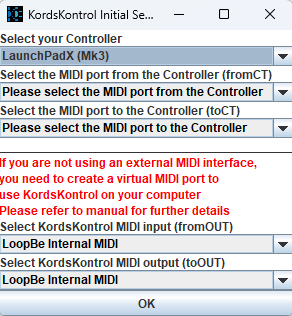

The first 2 ports are used to communicate with your controller. The MIDI messages coming from your controller (“fromCT“) are considered as an Input to KordsKontrol; while the MIDI messages sent to your controller (“toCT“) are considered as an Output of KordsKontrol.
The right choice of ports is critical. What is a little bit tricky is that, several controllers have many ports, and you need to use the ones that are compatible with their user /native / MIDI mode control.
These ports shall not be used by any other application to avoid conflicts. It is therefore recommended to disable it in all the music software (DAW, …) you use, or, at least to start KordsKontrol before any application that may request access to it.
For the controllers that I own, since I already know the name of the ports that needs to be used, I have registered them inside the KordsKontrol code so that the software is able to automatically select them on the initial setup windows.
For controllers that I don’t own, the choice has to be done manually. If you have any doubt, do not hesitate to contact me with the list of the ports that pops up; not only I will be able to help you, but also I will add these ports names in my code so that, updates after updates, all the controllers ports can be recognised automatically!
On Mac OS, KordsKontrol is using a Third-party library to communicate Sysex messages to all the controllers (except Maschine controllers); this library is called CoreMIDI4J, and seeing the mention of this name in the controller port name is a good sign, it means that KordsKontrol is using the correct version of the port (the one provided by the library)
The third and fourth port used by KordsKontrol corresponds:
- To the MIDI data KordsKontrol is sending to the destination instrument (hardware or via a virtual MIDI cable) that you want to use with KordsKontrol (“toOUT” port)
- To the MIDI data (“fromOUT“) you can direct to KordsKontrol from an external instrument / DAW (it is used for external clock input, or to send a CC message from an external switch pedal for example to control some features of the Performance page)
The ‘fromOUT” port is optional, if you do not need to use external clock or switch pedal to pilot the change to next chords in Performance page from your destination instrument or daw, you can simply select ‘none’.
If you are using an external hardware destination instrument, or if your Virtual MIDI cable accept only 1 device connection at a time, these ports shall not be used by any other application to avoid conflicts. It is therefore recommended to disable it in all the music software (DAW, …) you use, or, at least to start KordsKontrol before any application that may request access to it.
More on this in the User guide.
If you are on Mac, ‘fromOUT’ must use the CoreMIDI4J version of the port to ensure MIDI clock can be sent to KordsKontrol
If you are using a Virtual MIDI cable, please refer to the User guide for detailed information about the proper setup depending on your needs.
KordsKontrol filter the ports available for fromOUT and toOUT to avoid having controllers ports appearing in the Initial setup Window. So, if you are using Virtual MIDI, avoid to name it similar to a controller, it might be filtered and not available for selection.
Your destination instrument must be configured to receive MIDI notes and CC messages from ‘toOUT’, and to send MIDI clock and CC messages to ‘fromOUT’
The wording seems reversed because the ‘from’ and ‘to’ are considered from the KordsKontrol standpoint, which is opposite to the destination instrument standpoint – an Input for one in an Output for the other and vice versa)
- MIDI notes from ‘toOUT’ are the notes sent by KordsKontrol (Chords, Arpeggio notes, …)
- CC messages from ‘toOUT’ are CC messages sent by the Arpeggios (or the encoders if your controller is compatible)
- CC messages to ‘fromOUT’ can be used to send a CC message to KordsKontrol to simulate the switch pedal (change to next chord in Performance page) if your controller has no pedal input or if you want to pilot that from your DAW for example
- MIDI clock to ‘fromOUT’ can be used to send standard MIDI clock messages to KordsKontrol to use the Auto Trigger function sync on an external clock

If you use Ableton Live, it should look like that if your Virtual MIDI loopback cable is called ‘loopMIDI’ – Track corresponds to note messages and CC messages, Sync to MIDI clock messages, and Remote and MPE are not required
Concerning Ableton Launchpads, it is important to disable these controllers as controller surface within Ableton Live, other while, if you use Ableton and KordsKontrol simultaneously, Live will force them to leave their Programmer mode, that KordsKontrol is using, and enter a so-called DAW layout (part of Live mode) to control Live. This is preventing Programmer mode to work.
I am attempting to implement a feature that automatically detect if this happen, and allow KordsKontrol to recover from such issue.
Please note that your controller needs to be plugged using a proper cable to your computer. Some USB cables provide power only, no data, which means that your controller will look like it is plugged, but it will not be available for your computer.
Also, KordsKontrol has to be exited properly to ensure MIDI resources are freed up. Please try to never kill the application, other while you may have issues when you launch application again (ports not freed, requiring a system reboot).
For the Korg padKONTROL, please also make sure that the USB drivers are properly installed. padKONTROL is not a class compliant USB device
http://www.korg.com/us/support/download/product/0/161/
For Native Instruments Maschine MKI and MIKRO MKI, please also ensure that the drivers are installed – Maschine MKI is not a class compliant USB device (it seems that these drivers are, by the way, not supported anymore on latest Mac OS releases)
https://www.native-instruments.com/en/support/downloads/drivers-other-files/
Also, important point to be notes: some Maschine controllers are not recognised on LINUX
All Maschine controllers must be placed in MIDI Mode, with the KordsKontrol template corresponding to your device loaded. To achieve this, the use of the Native Instrument Controller editor is needed
Please visit Downloads page to get the right Controller Editor template.
For details concerning the Controller editor and Controller MIDI mode, please refer to Native Instruments documentation.
https://support.native-instruments.com/hc/en-us/articles/7083345683857-What-is-Controller-Editor-
https://support.native-instruments.com/hc/en-us/articles/210264145-How-to-Use-Your-Native-Instruments-Controller-in-MIDI-Mode
If the issue persists, try to reset your controller (OFF-ON), or restart your computer.
Please also note that some controller proposed in the list are not tested yet (due to the lack of the controller availability on my side); when it is the case, the Initial setup window will display a warning indicating that the support of this controller is not guaranteed yet. Please visit the Compatibility page for more details. It is not guaranteed that controllers not tested yet are working properly. If you notice any issue, please let me know so that I can work on it.
I cannot open KordsKontrol on Mac, I have a security warning saying that Apple cannot check that there are no malware in the app
This comes from the fact that the app is downloaded from Internet and Apple is suspicious about it. No worries! You just have to press ‘Command’ and then click on the app directly from the finder (not using the Launchpad). You should get access to a menu that gives you the possibility to open it anyway. You only need to do this once.
My destination instrument is not playing!
First of all, please check if you need a Virtual MIDI loopback cable port. You need either a third-party Virtual MIDI port (Windows), or a IAC Driver Virtual MIDI port (Mac OS) – See the User guide for more details.
Then, you need to ensure that the selected output port “toOUT” is not be locked or used exclusively by another application, so that KordsKontrol can use it to send MIDI out.
If you are targeting Virtual Instruments in a DAW or Standalone, you must ensure that the “toOUT” port is properly configured as a MIDI input in your application, and that it is enabled for receiving MIDI events. On some software, you need to enable the ‘Monitor input’ function to allow the MIDI events to go through up to your instruments.
If you are targeting an external Hardware Instrument, you must select for “toOUT” the input MIDI port of the instrument if your instrument appear as a MIDI interface on your computer, or direct “toOUT ” to a MIDI OUT port of your MIDI interface that is connected to the instrument.
For further explanation regarding MIDI routings, please refer to the User guide.
Last but not least, KordsKontrol is a 16 MIDI channels application. Some of the notes played are directed to MIDI channel 2, 3….. Please check that your destination is configured to receive MIDI from others channel than 1, or change the MIDI channels used by KordsKontrol in the settings file.
I have some issues with the sustain pedal of my destination instrument!
Some instruments may encounter issues with the automatic Sustain Pedal management (when a Sustain Pedal Off message is followed by a Sustain Pedal On message too quickly, the Pedal Off message is sometimes ignored) . The settings file allows to adjust timers parameters to enhance compatibility on this point. For further explanation, please refer to the User guide.
I have some audio jitters while using KordsKontrol!
KordsKontrol is able to generate a huge amount of MIDI data on its output MIDI bus. In some cases, a bus overload could lead to some audio jitters.
KordsKontrol is able to generate a huge quantity of notes simultaneously. In a virtual instruments multi channel configuration, KordsKontrol can easily overload your system computing real time audio rendering capabilities, especially when each MIDI channel is affected to a dedicated plugin, each of them consuming your system resources. In that case, adjusting the sample buffer size of you Audio device is recommended (the drawback being an increased latency).
Please also keep in mind that KordsKontrol is managing automatically the sustain pedals on up to 8 channels. So, please avoid to direct all the channels to a single destination target: this instrument will receive simultaneously a lot of sustain pedal messages coming from the different channels.
Please refer to user guide for more information on the MIDI channels configuration.
I don’t know how to install the license file
The license/key file has to be moved in the KordsKontrol folder (generated by KordsKontrol after the first launch). This destination folder path is displayed in the KordsKontrol console on program startup.
This file is protected by an hash algorithm and cannot be edited.
It will be a great pleasure to support you if you still meet issues to start the application. Don’t hesitate to ask!
Last but not least, KordsKontrol is using Java (17), but installation programs comes packed with an included JRE (Windows and Mac). So, it should not be need to install Java yourself. In case you are using KordsKontrol on Linux, or if you just want to install Java anyway:
https://www.java.com/fr/download/
And finally… please be patient :). The application generates a huge amount of data in the Chords database during the startup, which may take a few seconds if your CPU is slow.
 KordsKontrol